Add your app to your iPhone home screen
These screenshots show the browser menu. In Safari, tap the Share button directly, then choose Add to Home Screen. Menu options may vary by iOS version.
Open your app
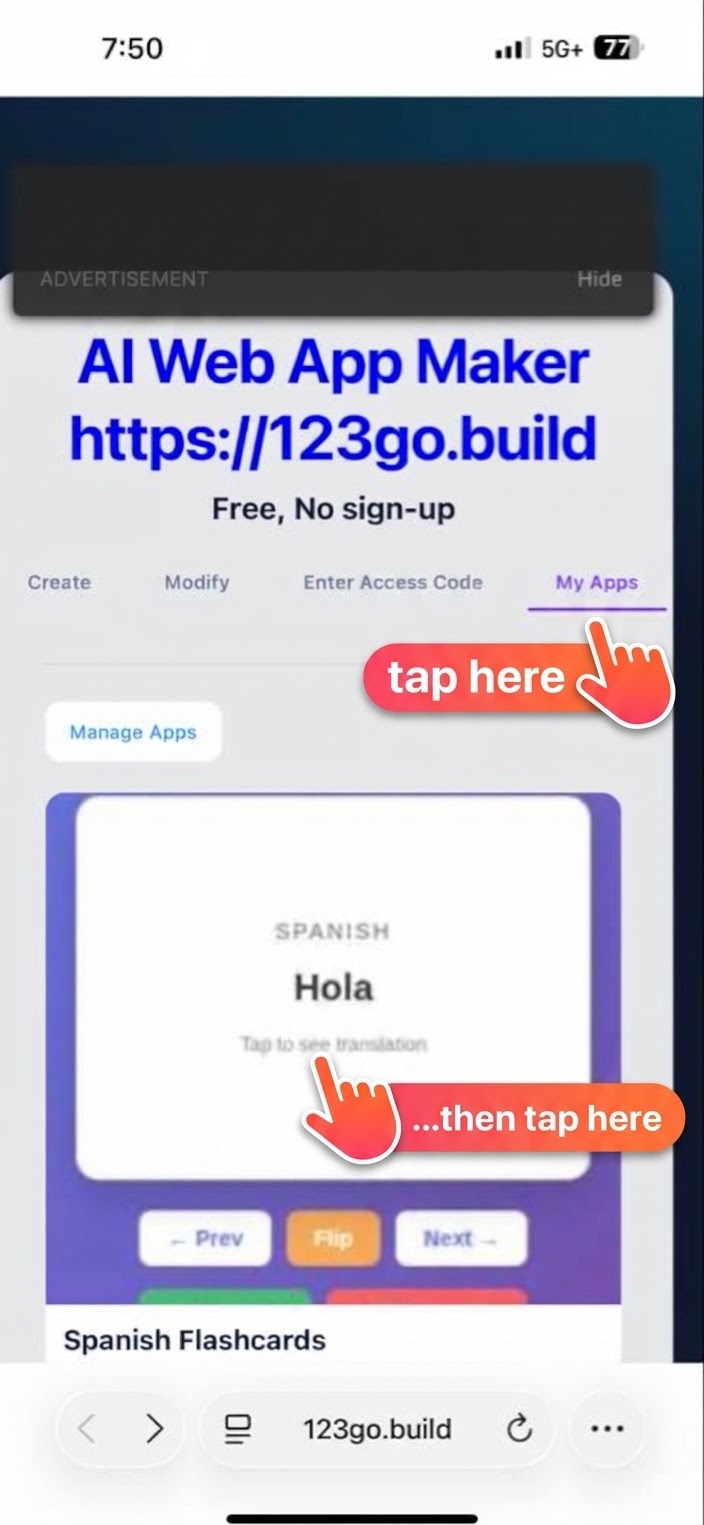
On 123go.build, tap My Apps, then tap the app you want to add.
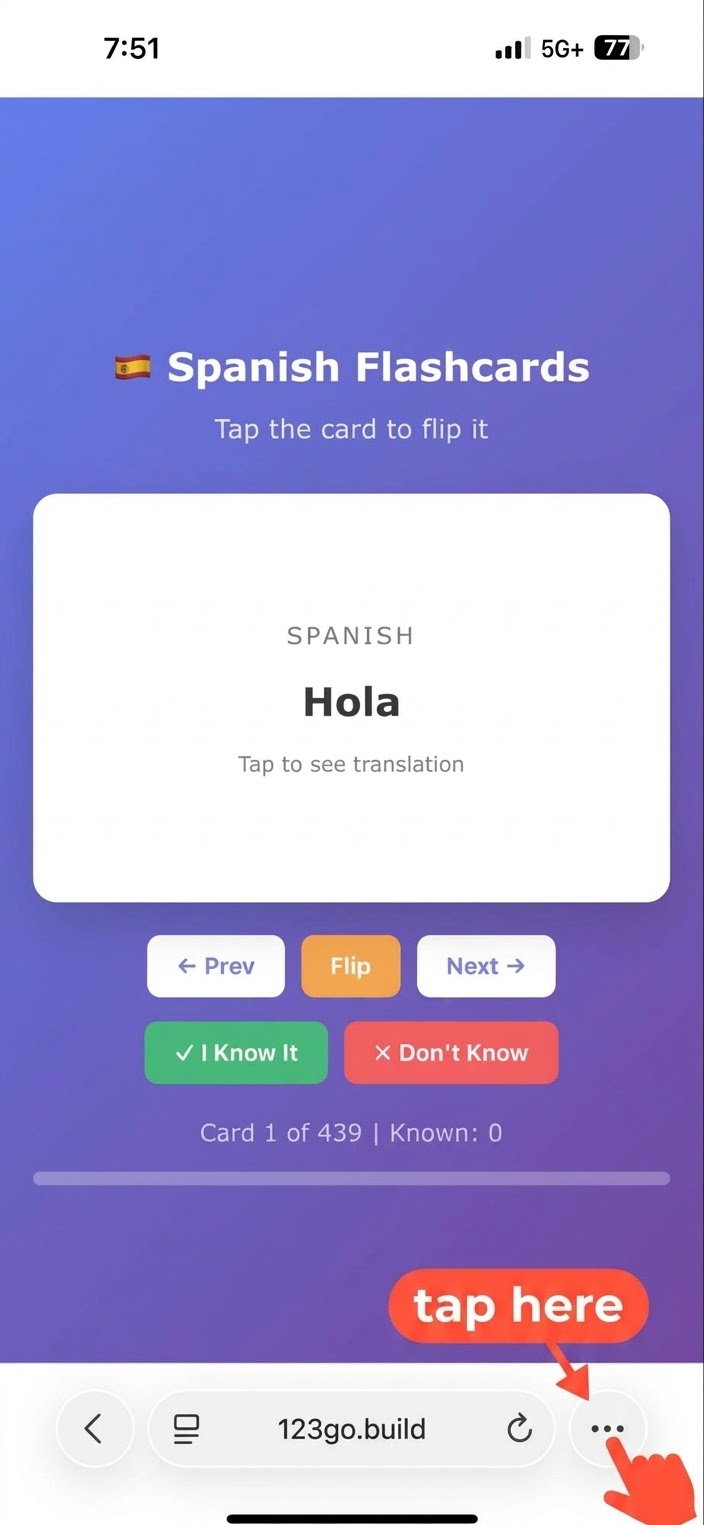
Open the browser menu
In the browser shown, tap the three dots.
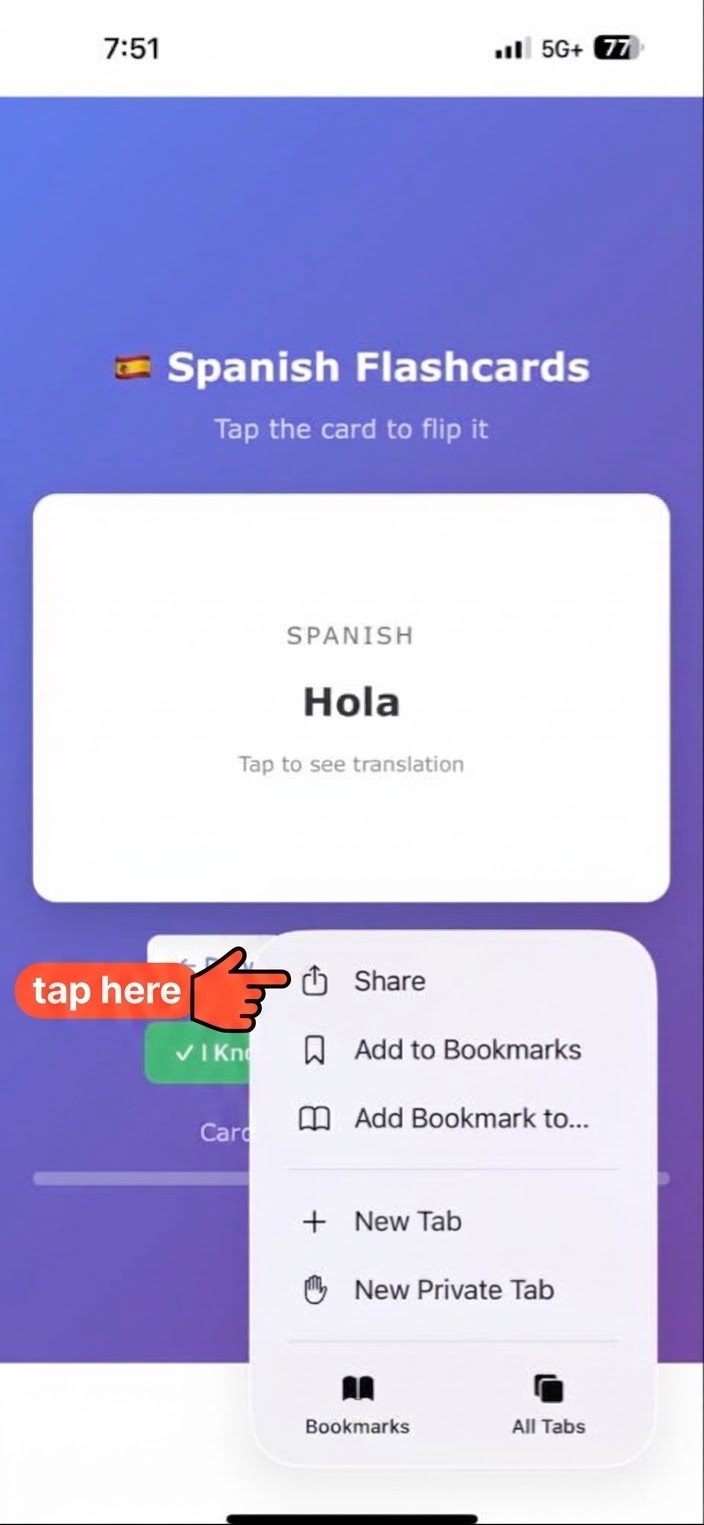
Tap Share
Tap Share in the browser menu.
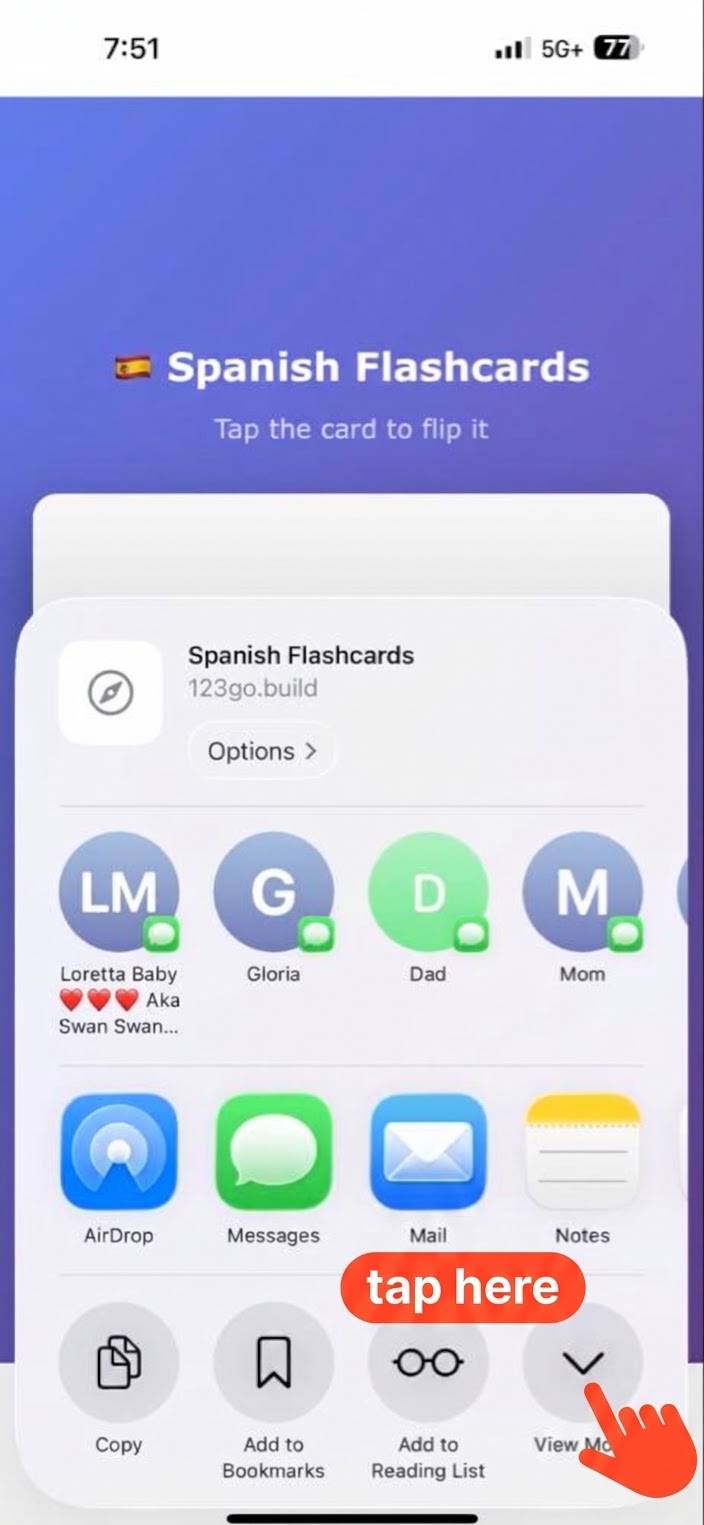
View more actions
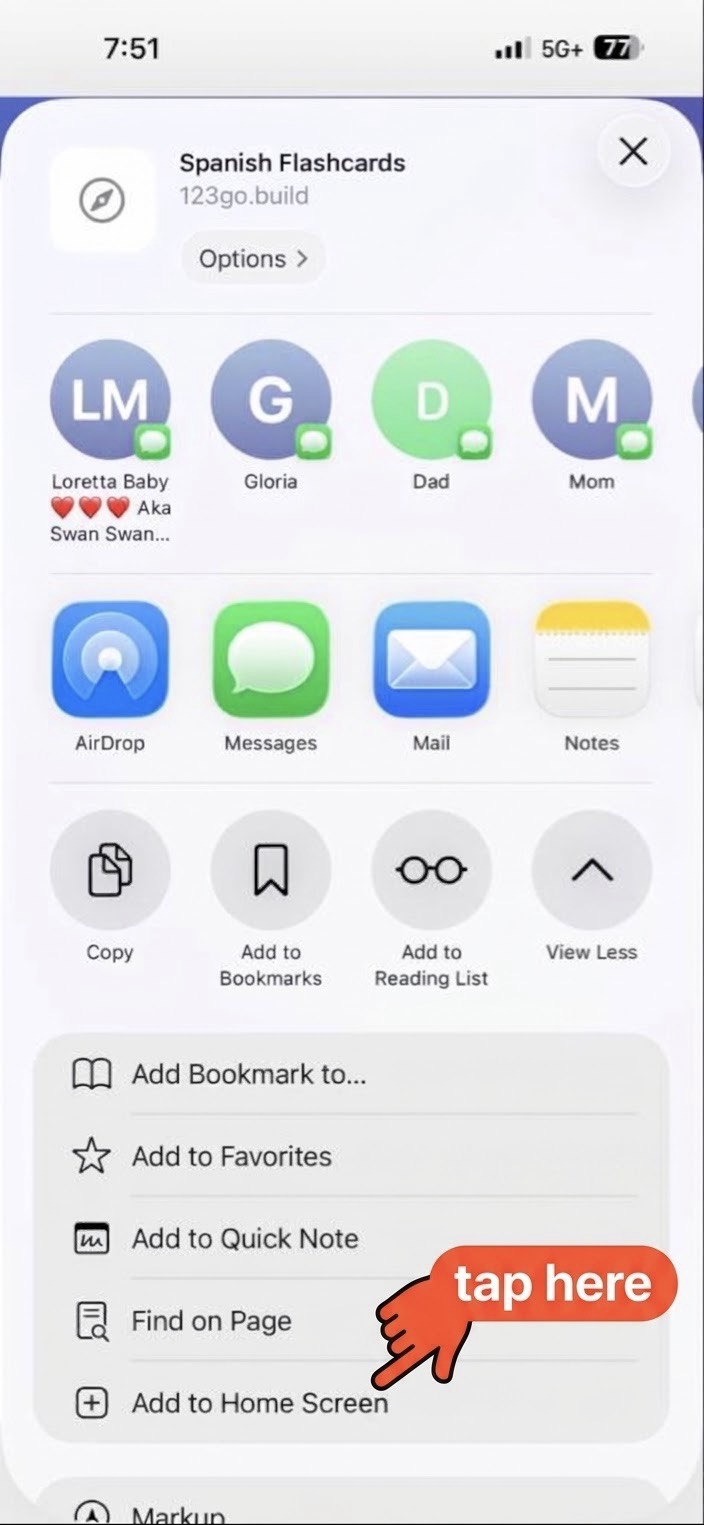
In the share sheet, tap View More if needed to see more actions.
Choose Add to Home Screen
Tap Add to Home Screen in the share sheet.
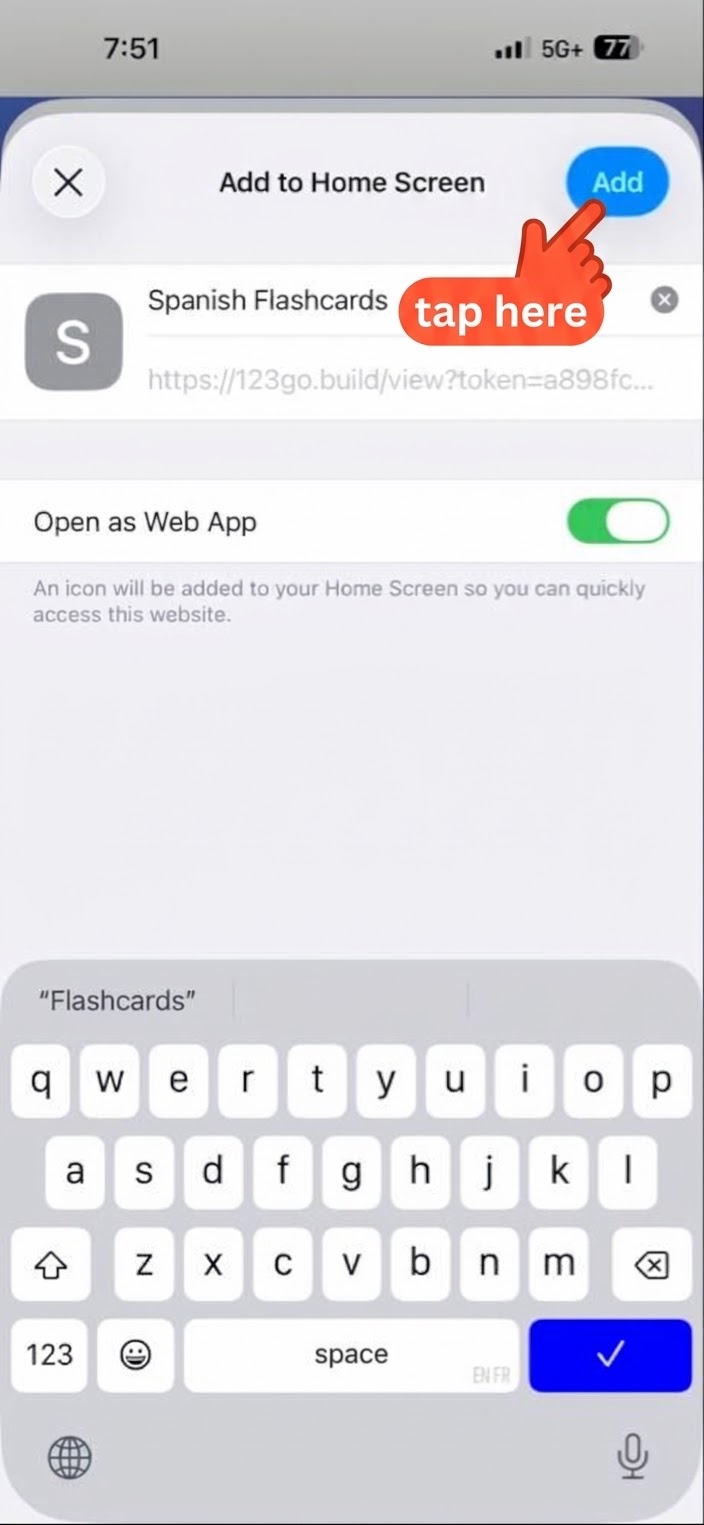
Add the app
Adjust the name if you like, then tap Add.
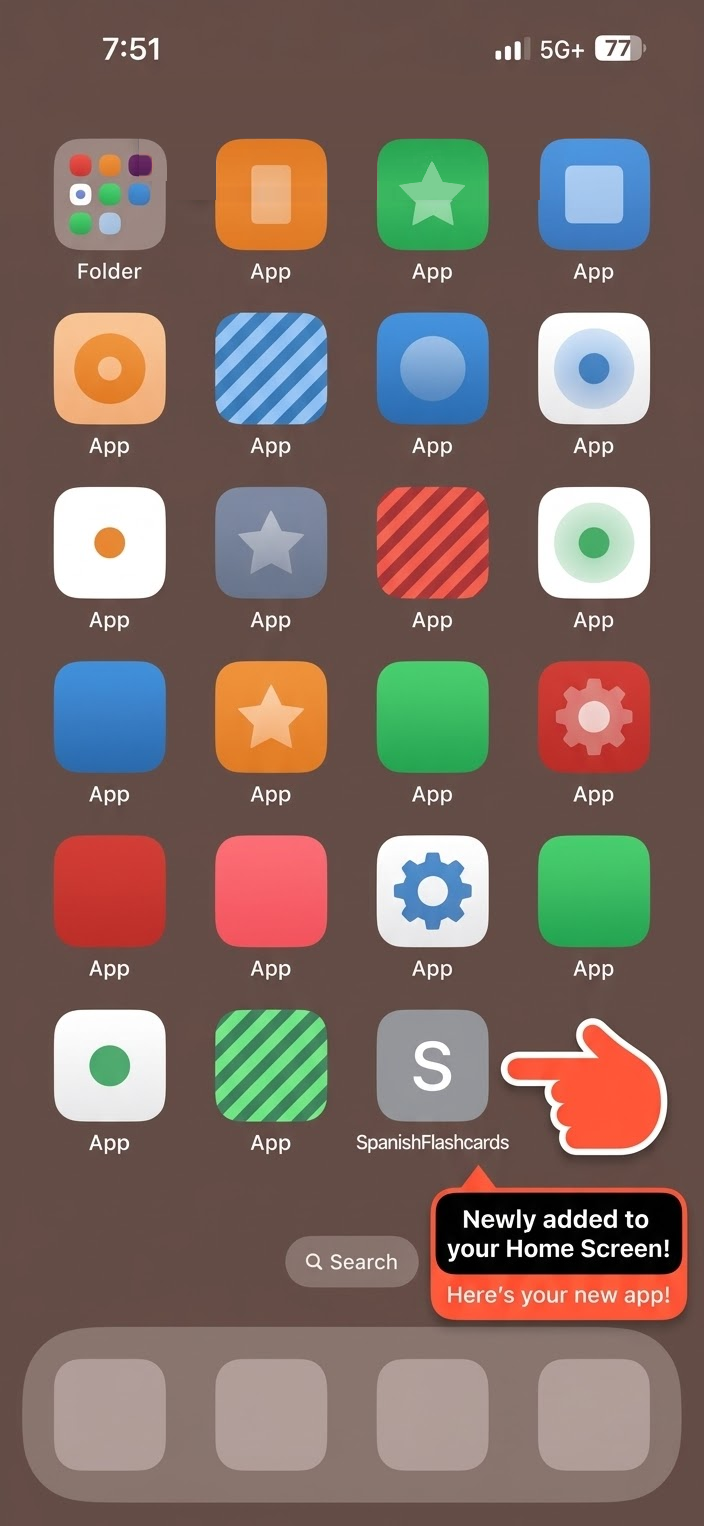
Open it from your home screen
Your app icon is now on your home screen. Tap it to open the app.
3rd Party Ads: